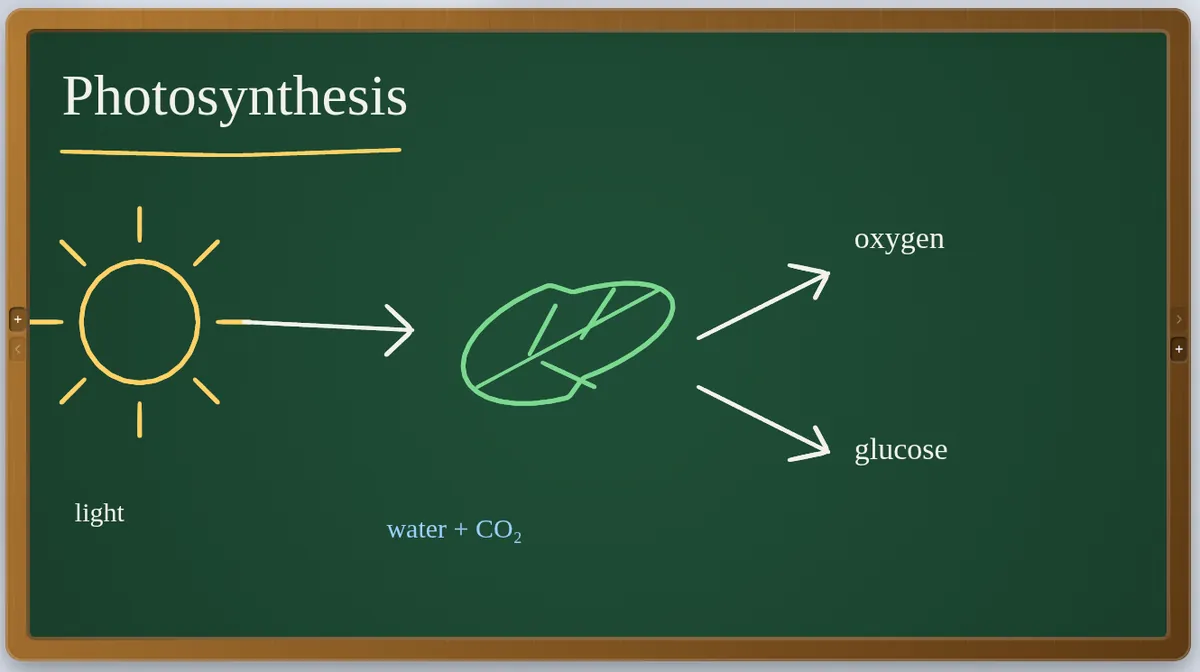
Share it, or go live
- Share the window. In Zoom press Share Screen and choose the browser window with Slate. Draw with a mouse, a touchscreen or a pen tablet.
- Go live in Slate. Start a session from Collab and drop the invite link into the Zoom chat. Students see your board directly, at full sharpness, while you keep talking in Zoom.
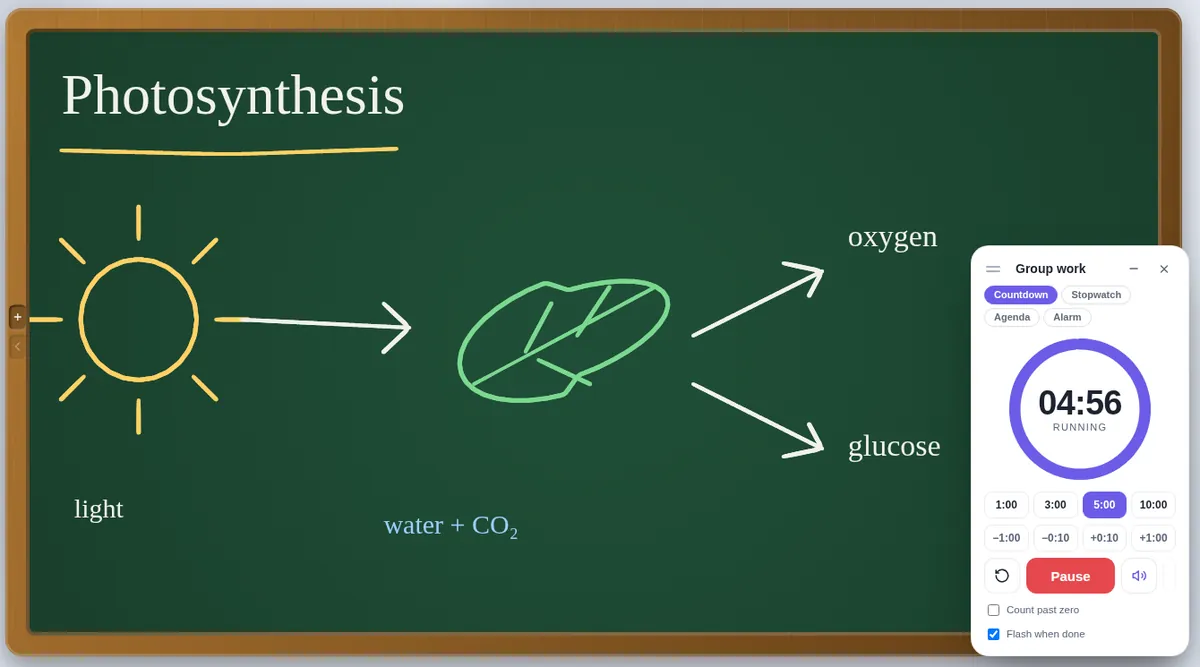
Made for a lesson, not a meeting
- Chalkboard, blackboard or whiteboard surfaces in a wooden or coloured frame — it looks like the front of a classroom.
- Spot question: draw a box round a question and every student gets it on a card with room to work. Their working comes back to you in a gallery you can mark.
- Break, timer and games: a calm break screen with a countdown, a classroom timer, a random-name wheel, and two class games.
- Replay: afterwards, press play and the lesson redraws itself — export it as a video for anyone who missed it.
Before your first Zoom lesson
- Open Slate once, so it is ready offline too.
- Prepare your boards before class and save them as a
.slatefile. - In class, share the window — or press Collab, start a session, and post the invite link.
Questions teachers ask
Does Slate replace Zoom's own whiteboard?
It sits beside Zoom. Zoom carries the video and voices; Slate gives you a teaching board with replays, writing boxes, quizzes and polls, and a lesson file you keep.
Can students join from a phone?
Yes. The invite link opens Slate with the room code filled in, and the QR code lets a class join by scanning the screen.
Do I need an account?
No. Open Slate in a browser and start drawing — there is no sign-up and nothing to install. Your work stays on your device and saves as a .slate file. Students joining a live session type only their name and the room code. To host a live session you use an access code; if you do not have one yet, ask through the suggestions page.
Also on Slate
Google MeetUse Slate as your whiteboard in Google Meet: present the tab, or run a live session so…Microsoft TeamsRun your Microsoft Teams class on Slate: share the window or start a live session where…Record lessonsRecord a whiteboard lesson with your voice: Slate captures your ink and narration…The guideEvery feature, a chapter at a time