Two ways to use Slate in Meet
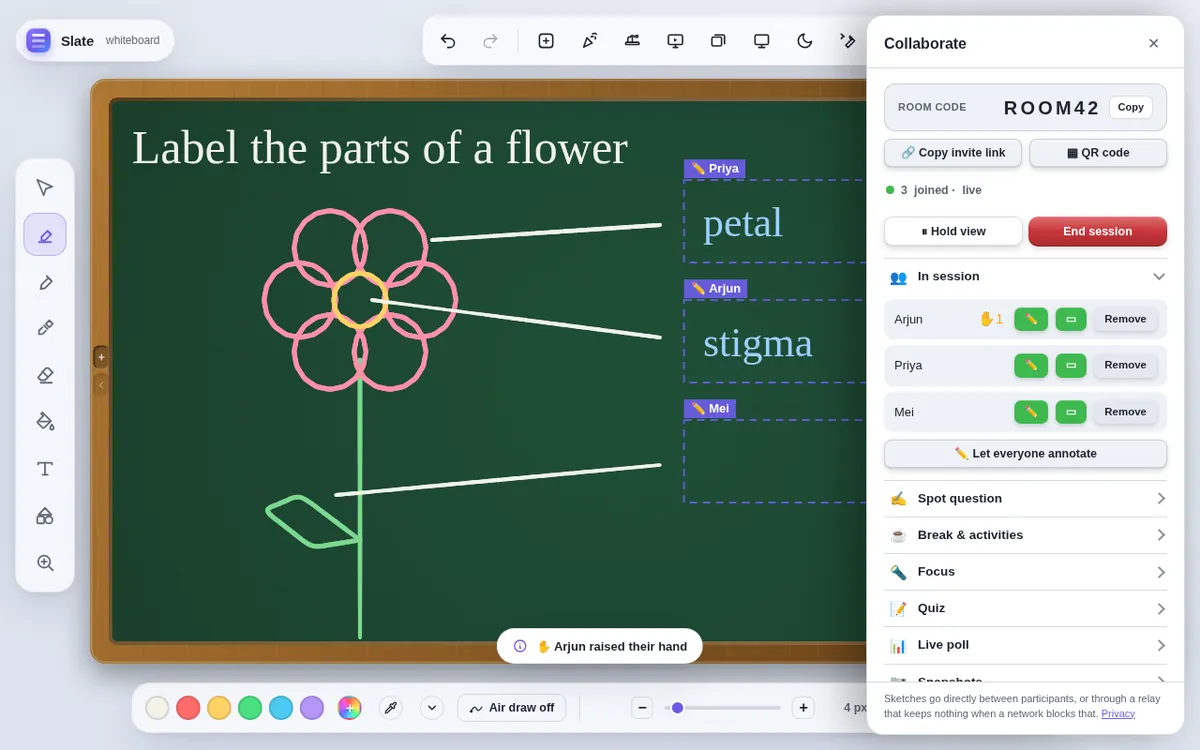
- Present the tab. Open Slate in Chrome, then in Meet choose Present now → A tab and pick Slate. Everyone sees your board as you write. Nothing else to set up.
- Run a live session. Keep Meet for talking, and start a Slate session from Collab. Students open the invite link (or scan the QR code), type their name, and see your board crisply on their own screen — zoomable, and ready for them to write on when you hand them the pen.
Why a live session beats a screen share
- Every student sees a sharp board at their own screen size, not a blurry video of yours.
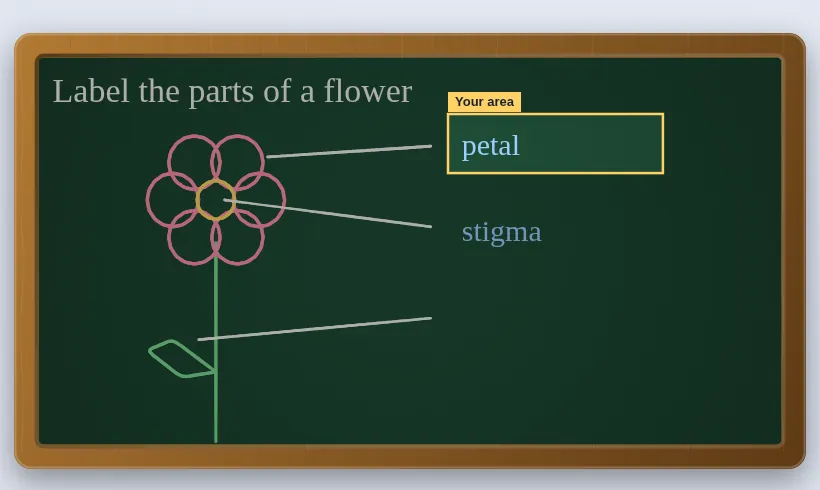
- Students can write: hand the pen to one, let everyone annotate, or give each student a writing box — they can write in it and nowhere else.
- Hands up, “Got it / Unsure / Lost”, questions pinned to the board, quizzes, polls and a random-name wheel all run inside the session.
- Up to 60 students, joining from laptops, Chromebooks, tablets or phones.
Set it up in a minute
- Start your Meet call as usual.
- Open Slate in another tab and press Collab. Enter your access code to get a room code.
- Paste the invite link into the Meet chat. Students type their name and wait to be admitted.
- Admit them, and teach. Voices stay in Meet; the board stays in Slate.
Questions teachers ask
Can I just share my screen instead?
Yes. Present the browser tab with Slate and you need no session or access code at all. A live session is what lets students see the board on their own device and write on it.
Does Slate carry audio?
No — keep talking in Meet. Slate only carries the board, so it stays light even on school Wi-Fi.
What if the school network blocks it?
Slate connects students directly where it can, and moves anyone who cannot connect onto a small relay by itself after a few seconds. The relay passes the board along and keeps nothing.
Do I need an account?
No. Open Slate in a browser and start drawing — there is no sign-up and nothing to install. Your work stays on your device and saves as a .slate file. Students joining a live session type only their name and the room code. To host a live session you use an access code; if you do not have one yet, ask through the suggestions page.