Using Slate alongside Teams
- Share it. In the Teams meeting, press Share and choose the window with Slate open.
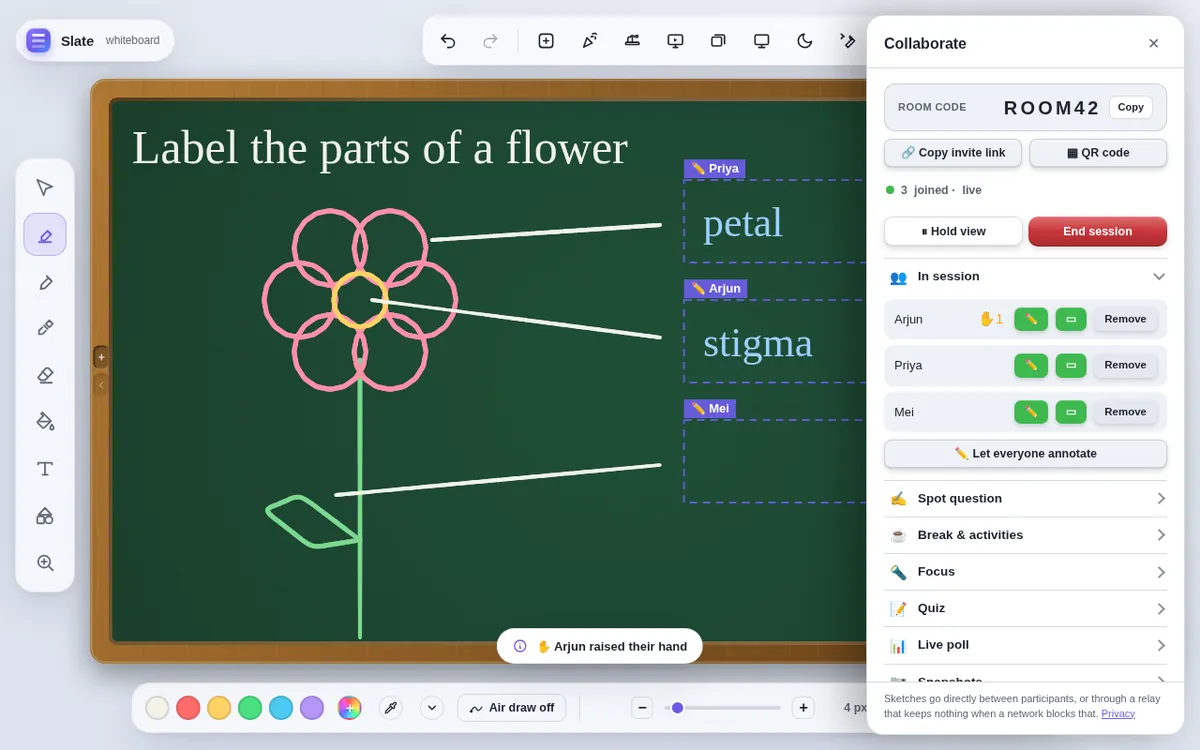
- Or start a live session. Press Collab in Slate, then post the invite link in the meeting chat. Students join in their browser — no Teams add-in, no account.
Keep a class with you
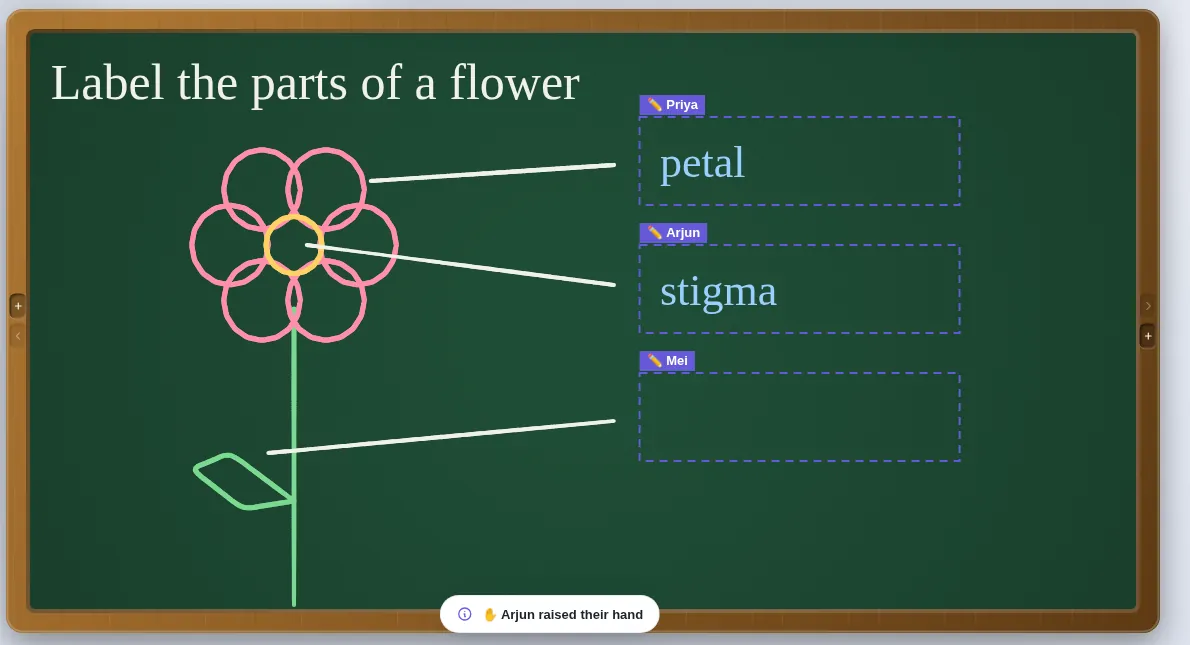
- Writing boxes. Give each student a box to write in — or several, one per question. Their answers appear on your board; your own work is protected.
- Quick checks. Students tap Got it, Unsure or Lost, and you see the count live.
- Questions on the spot. A student taps the part of the board they are stuck on, and a small “?” with their name appears there for you.
- Quizzes and polls run inside the session, with results on every screen.
Getting started
- Open Slate in Edge or Chrome on the computer you teach from.
- Join your Teams meeting, then start a Slate session from Collab with your access code.
- Paste the invite link into the chat and admit students as they arrive.
Questions teachers ask
Do students need Microsoft accounts?
Not for Slate. They open the invite link in any browser and type their name.
How many students can join?
Up to 60 in one live session.
Do I need an account?
No. Open Slate in a browser and start drawing — there is no sign-up and nothing to install. Your work stays on your device and saves as a .slate file. Students joining a live session type only their name and the room code. To host a live session you use an access code; if you do not have one yet, ask through the suggestions page.
Also on Slate
Google MeetUse Slate as your whiteboard in Google Meet: present the tab, or run a live session so…ZoomTeach on Slate during a Zoom class: share the browser window, or start a live session so…Online tutoringA free online whiteboard for tutoring: students write in their own box, hand in their…The guideEvery feature, a chapter at a time