What Jamboard users look for, and where it is in Slate
- Sticky notes. Notes, cards and callouts in thirteen shapes — colour them, resize them, and aim a callout’s tail at anything.
- Frames. A Slate lesson is a deck of boards — add, reorder and flick between them like Jamboard frames.
- Pens and an eraser. Pen, pencil and highlighter with pressure from an Apple Pencil or a Wacom pen, and an eraser that rubs out, erases one colour, whole marks, or everything inside a box, oval or lasso.
- Images and shapes. Paste a picture, add shapes, arrows, tables, charts, mind maps and equations.
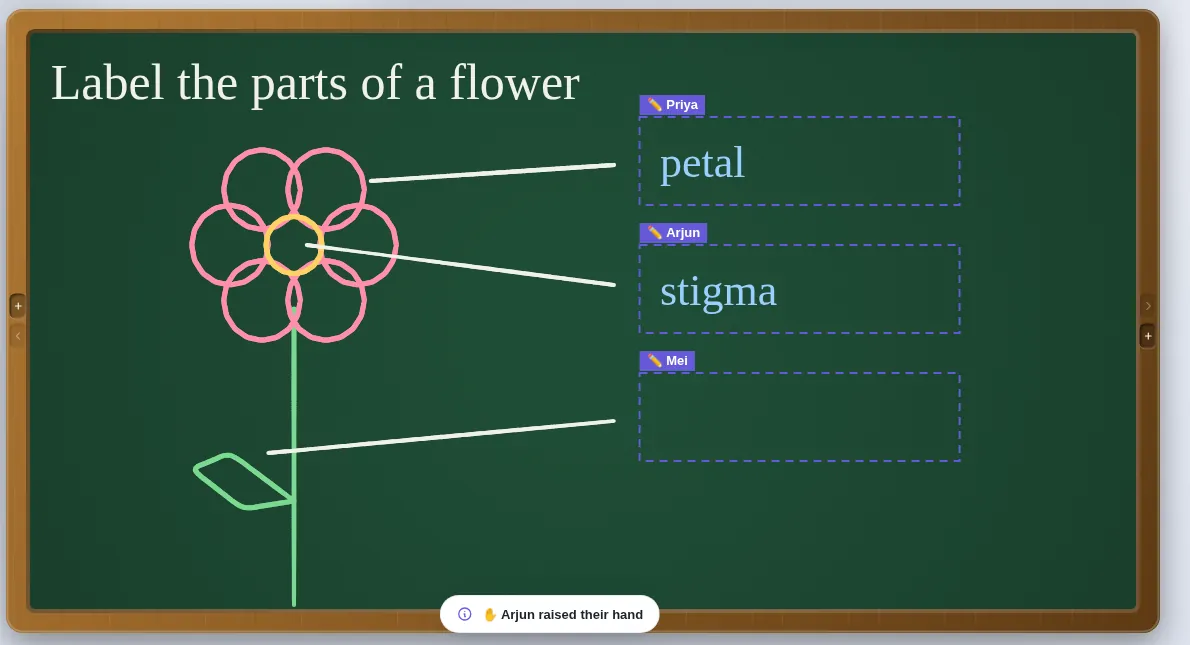
- Working together. Start a live session and your class watches the board as you write; hand the pen to one student, give each student a box to write in, or let everyone annotate.
What is different
- Slate is not tied to Google Drive. A lesson is one
.slatefile you keep wherever you like — it reopens in any browser, exactly as you left it. - Slate is built for teaching live rather than for a shared file people edit at different times. Your class joins a session with a room code, and their writing comes through you.
- Slate remembers how the board was drawn. Press play and the lesson redraws itself stroke by stroke — with your narration if you recorded it.
Moving a Jamboard lesson across
- Download your old Jam frames as pictures (if you saved them before the shutdown).
- Open Slate, add a board for each frame, and paste a picture onto each one — you can write straight over it.
- Save the deck as a
.slatefile. Next lesson, open it and carry on.
Questions teachers ask
Is Slate free?
Yes. Slate is free to use, with no adverts and no tracking.
Can students write on the board like they did in Jamboard?
Yes, in a live session. Tap ✏️ beside a student to hand them the pen, use Let everyone annotate, or tap ▭ and drag a box that student can write in — one box per question if you like.
Does it work on Chromebooks and iPads?
Slate runs in the browser on Chromebooks, Windows, Mac, iPad and Android, with touch, stylus and mouse. Once loaded it also works offline.
Do I need an account?
No. Open Slate in a browser and start drawing — there is no sign-up and nothing to install. Your work stays on your device and saves as a .slate file. Students joining a live session type only their name and the room code. To host a live session you use an access code; if you do not have one yet, ask through the suggestions page.
Also on Slate
Google MeetUse Slate as your whiteboard in Google Meet: present the tab, or run a live session so…Online chalkboardA free online chalkboard: green board, blackboard or whiteboard in a wooden frame, with…Online tutoringA free online whiteboard for tutoring: students write in their own box, hand in their…The guideEvery feature, a chapter at a time